The Report Widget displays the latest published reports in Wide Narrow, limited to a set number of reports within a specific report series. Users can click on the reports in the widget to open and read them on the Dashboard.
Prerequisite: Make sure you have at least one report set containing at least one published or uploaded report.
Add the widget
- Go to the Dashboard overview page.
- Click on Widgets and then New Widget to create a shared Dashboard Widget.
OR, to create a widget only available for a specific Dashboard:
Click on a Dashboard card, then the settings icon (three dots) on top of the dashboard page, and select Manage widgets. - Click the blue Add/New Widget button at the top right of the Dashboard page and select an area to position your widget (top, right, or left).
- Click the Report tab in the top menu and then click the Add button on the Report Widget card.
Configuring the widget
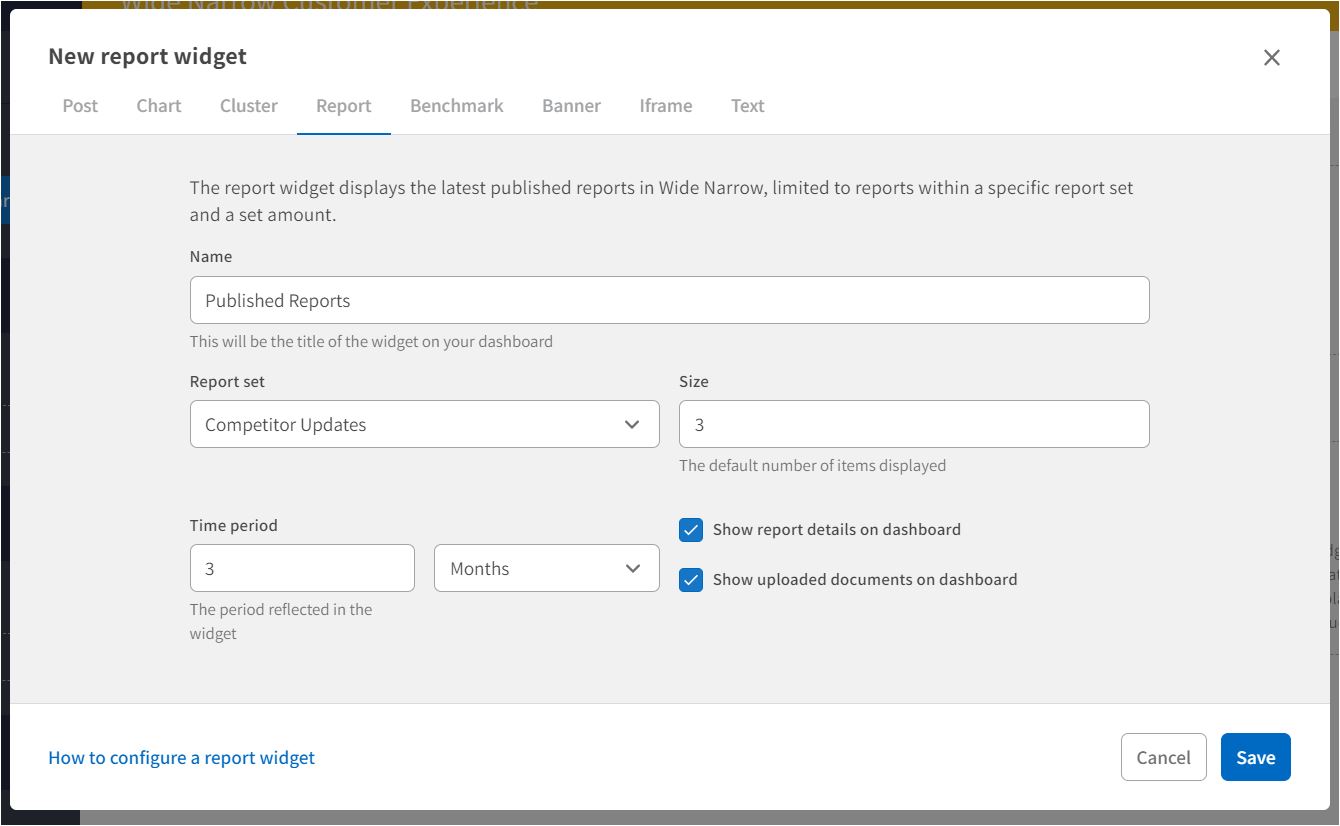
- Name: Type the name of the widget. The name will be the title of the widget on the Dashboard. Choose a name that clearly explains the widget, for example, "Latest Reports”, “Published Reports,” or the name of the report set.
- Report set: In the drop-down, select the report set whose published reports you wish to display in the widget.
- Size: Set the number of Reports to display in the widget. If there are more published reports than the set number (within the specified period), the user can press the Show more button to load and read more reports. The reports are shown in chronological order.
- Time period: Select the period you wish to display the published reports: the number of days, months, or years.
- Show report details on Dashboard: Tick the box to enable users to open a report and preview the most critical information in the widget. Users can also download the report in PDF.
- Show uploaded documents on Dashboard: Tick the box to enable ad-hoc/uploaded reports/documents to be displayed in the widget. Users can download the documents by clicking them in the widget.
- Press Save. The widget is now available to review on the Dashboard.
User Access:
Only superusers with Admin privileges can create brand new Dashboards. Admins may, however, grant other superusers the authority to modify and update existing Dashboards. Superusers who are permitted to change Dashboards can also add new Dashboard Widgets.
Comments
0 comments
Please sign in to leave a comment.