Last updated: February 17, 2023
Produce a report:
When creating a Report for the first time, start by creating a new report template.
Navigate to Reports and click the "New report" button. On the report overview page, fill in the new report form and Save.
Once you have created the report template, open the report and follow the three-step screen, refine and report workflow to produce a report.
When opening the report, the report template and report workflow step are expanded as default. The screen and refine workflow steps are flexible and displayed when applicable and depending on your starting point.
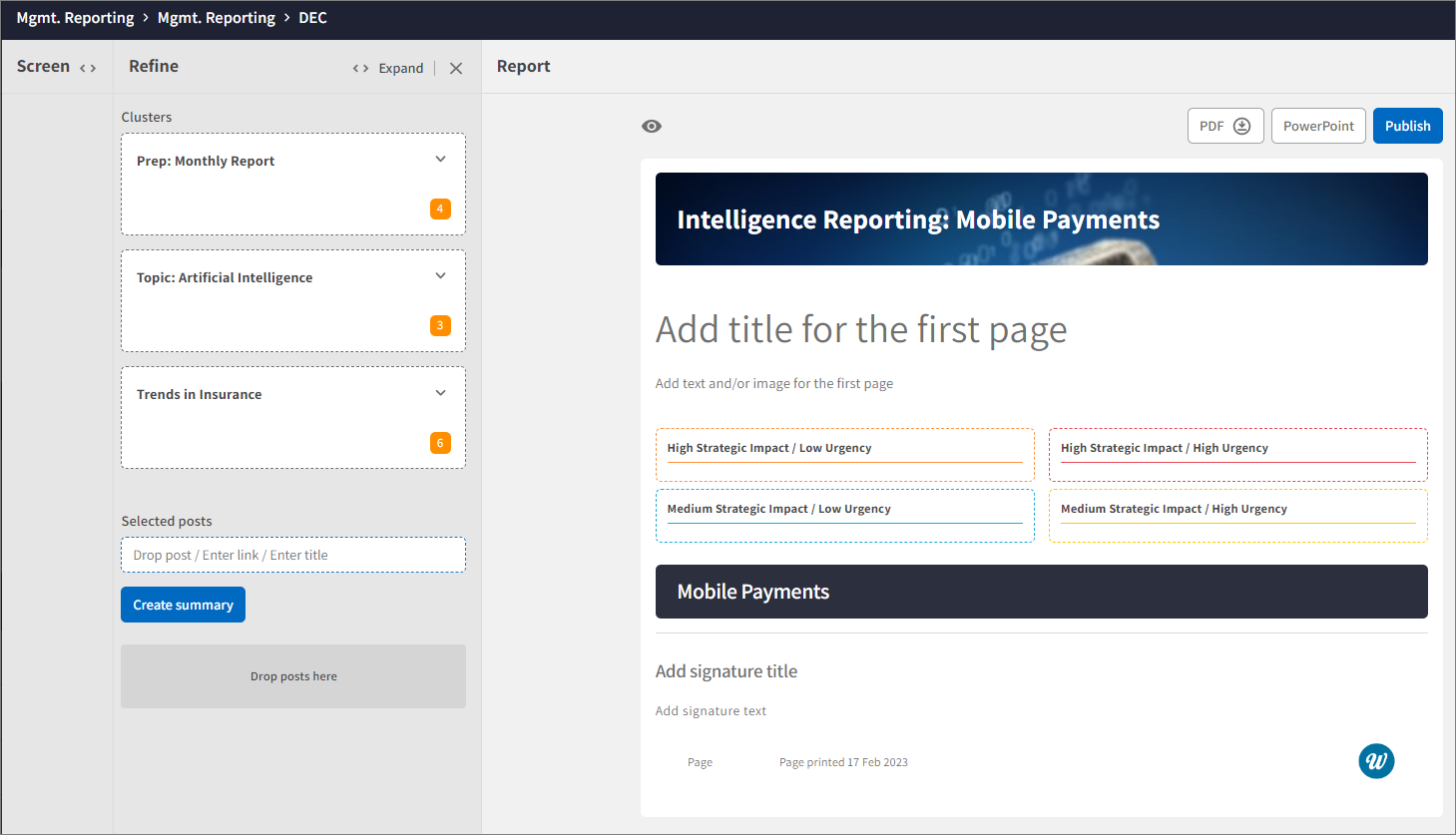 In Screen:
The Screen step is the workflow step where you add content to the report. You can add Posts from Search, content from Newsletters, and other Reports. You can also add Summaries and posts from Workspaces. You do that in the Refine step.
- Click Expand to expand the Screen workspace.
- Add content from Posts: Click Posts and use the filter to select posts to the report. Use the Select (tick) button to add posts.
- Add content Reports: Click Reports and then Find Reports to add content from other reports. Select one or several report sets in the drop-down list and then click the report icons of reports you want to include. Click Save. Use the Select button to add posts from the reports.
- Add content Newsletters: Click Newsletters, and select a custom time range to display available newsletters. Click to open a newsletter and use the Select (tick) button to add posts from the newsletter.
In Refine:
In the Refine step, you can cluster and summarize your added posts into Summaries. For example, you could merge similar posts or posts connected to the same change or event and use the AI summary tool to create a summary of the merged posts.
In this step, you can also download ready-made summaries and posts from the Workspaces you have connected to your report.
When starting reporting from a Workspaces , the Refine step will be the starting page together with the report template. If you want to add more content to the report, go back to the Screen step to add additional content.
- Click Expand to expand the Refine workspace.
- Click Connect Workspaces to add posts and summaries from Workspaces.
- Click Search Workspaces and select Workspaces to add to the Refine workspace.
- Click to open the Workspace and drag and drop selected Workspace posts and summaries to a new summary or directly to the matrix in the Report workspace.
- To summarize posts to insights: drag and drop posts to the summary drop zone and click Create summary.
- In the Summary edit form:
- Enter a headline, choose an icon, and position the featured image.
- Click Summarize in the abstract field to let our AI make a summary suggestion based on the reference abstracts or a reference summary. Make final adjustments to the text and Save.
- Optional: Move posts and summaries to the template and continue with the Report workflow step.
In Report:
The Report step is the workflow step where you continue to analyze the content and complete and publish the report. If you want to edit the report template before finishing the report, for example, by adding more analysis fields or changing the analysis template or layout of the entire report, click Edit Report at the top right of the page, change the template settings, and click Save.
- Click Expand to expand the Report workspace.
- Drag and drop summaries and single posts from the Refine workspace to the matrix (analysis model) in the Report workspace.
- Click Edit post to deepen the analysis and finally edit the posts. Click Save.
- Click Edit banner to change the report banner, text, and background colors and enter page titles.
- Click Edit first page to add a title, a first-page image, and a report summary or introduction. Click Save.
- Scroll down and click Add Signature to, for example, present the report authors. Click Save.
- Click Edit footer to add a footer image, for example, a company or team logotype. Click Save.
- Click the Edit Report (pen) icon at the top right of the page to add source references per post or make any other changes to the report layout.
- Click Preview (the eye icon above the report banner) to preview how the report will look when downloaded to PDF. If unsatisfied with the report in Preview, adjust the layout and then click Preview again.
- Click the Publish button, select recipients, and then click Publish to publish the report on the Dashboard and Report Library. Only recipients can see the published report in Infodesk.
- To generate a PDF, click the PDF button, select portrait or landscape format, and click Download. Use the PDF preview feature (the eye icon on top of the template) to make sure the report looks good. If necessary, edit the report by changing page breaks, image positions, and more.
- To export the report to ppt, click the PowerPoint button and then click Download.
- To add a separate reference list, click the PDF button, select References, and then click Download.
Tips! Use the PDF preview icon to make sure the report looks good. If necessary, edit the report by changing page breaks, image positions, and more.
Change report settings, page breaks, and post layout
If you want to edit the report template or change the layout of the entire report, click the Edit Report (pen) icon at the top right of the page, change the template, and click Save.
If you want to adjust page breaks, text, and image positions in individual posts, mouse over the post headline to open the post edit features. Make changes and click Save.
User Access: Reports are only available for Superusers.
Comments
0 comments
Please sign in to leave a comment.