Last updated: February 21, 2023
PDF is a widely renowned and trusted format. Still, PDFs remain pretty limited in comparison to online formats. There's also some hassle involved in editing the PDFs, and you can often waste quite a lot of time doing so.
When exporting Wide Narrow Reports to PDF, there are some challenges to maintaining the report format and content as it looks in the original online format in Wide Narrow. Problems arise, mainly when you use a lot of text and large images in the report posts.
The following tips will help your Wide Narrow report stand out and look professional in PDF:
Preview:
Use the Preview PDF feature in Reports to ensure that the final report will look as you like.
You find the Preview feature as an eye icon on the top left of the report page, just above the report banner. Click Preview when you have completed the report to check that it looks good when exported to PDF. If unsatisfied with the report in Preview, you can easily adjust the layout and then click Preview again.
First page:
If you have a lot of text on the report's first page, adding an image will usually be nicer.
If you want to fit both an introductory text and a matrix on the first page, we recommend a short introduction text without a picture on the first page.
Matrix:
Avoid too many posts in each square. If the matrix has too many posts, it will be less clear and more challenging to adapt to a professional PDF format.
When adding more than the default setting of matrix squares, click Preview before using the new template to review how the matrix looks in the PDF format.
If you wish to change the layout of the report matrix, click the Edit Report icon (pen) in the top menu above the report page. Don't forget to save your changes.
Report posts:
Use the page break feature in Posts to change the page breaks.
Divide long text sections into shorter paragraphs with about 8-10 lines per paragraph to enable nice page breaks and avoid white spaces on the report pages.
This recommendation is essential as the PDF page break only works between paragraphs in the post abstract, not within paragraphs. The PDF renderer strives to have no page breaks within a coherent text in a report post, so if the post text consists of a single long piece of text, the page break will probably not look good.
When adding big pictures to a report post (below or above the post abstract), avoid long text paragraphs directly adjacent to the image to avoid unwanted page breaks and white space.
If you want to adjust page breaks, text, and image positions in individual posts, mouse over the post headline to open the post page break and edit features. Don't forget to save your changes.
Fields:
When adding fields to posts, make sure that the field section is not longer than one page as the PDF renderer does not allow page breaks within the field section. It can break the page between the post paragraphs, the post image, and the field section but not within the field section.
If you wish to change the layout of the report Fields, click the Edit Report icon (pen) in the top menu above the report page. Don't forget to save your changes. 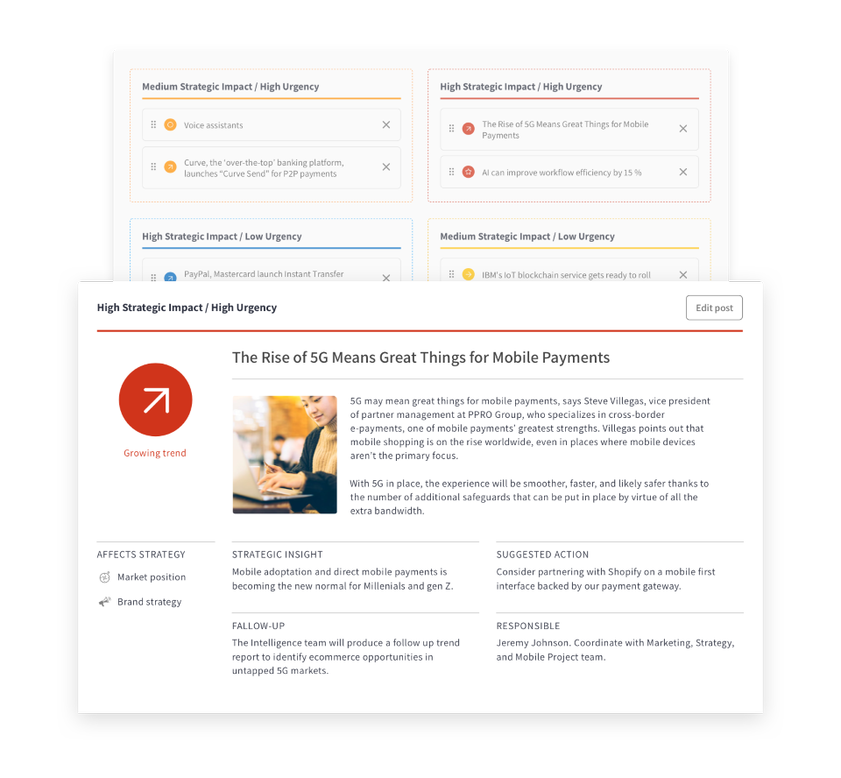
User Access: The report module is only available for superusers.
Comments
0 comments
Please sign in to leave a comment.