Last updated on May 3, 2024
This user guide explains how to integrate Dashboards on SharePoint.
DOWNLOAD GUIDE
Introduction
Integrating your portal Dashboard on SharePoint is a smart way to ensure that your stakeholders are updated on the latest news and insights.
You can integrate the entire Dashboard or select specific Dashboard widgets to share on SharePoint.
You can integrate Dashboards and Dashboard Widgets on other platforms, too. Please contact your InfoDesk Account Manager or Customer Success to discuss your needs and all possibilities.
Integration Prerequisites
SSO
The easiest way to integrate is to use single sign-on (SSO). SSO allows you to seamlessly access your portal from your intranet without the need for a username and password. The user is not required to have an account in Wide Narrow, and it can be created automatically.
Machine Users/Key Authentication
If you don’t have SSO access to Wide Narrow, you can use Machine Users/Key Authentication to give your stakeholders access to content from Wide Narrow on other platforms.
Contact InfoDesk Support for more information.
How to Embed a Dashboard on SharePoint
In your Wide Narrow Portal
Only Portal Admins, Dashboard Owners, and Writers have access to the Dashboard edit mode. Only Portal Admins have access to Admin
STEP 1
- Navigate to the Dashboard overview page.
- Optionally, click the New Dashboard button to create a new Dashboard or select an existing Dashboard.
- On the Dashboard card, click the More button (three dots) and select Embed Dashboard.
STEP 2
On the Embed Dashboard pop-up
Choose the SSO or Key Authentication tab to prepare and retrieve the embedded dashboard URL for use on SharePoint. If you need assistance, contact InfoDesk Support.
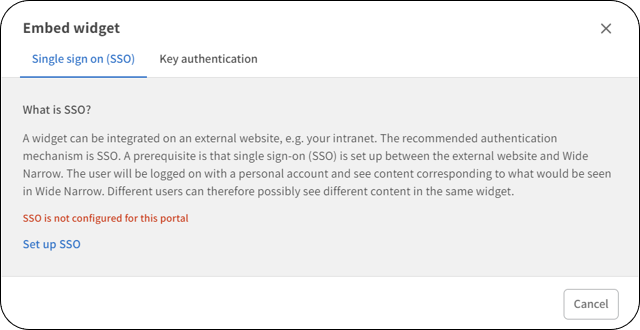
Please note that if you don’t have SSO in place, it will look like this:
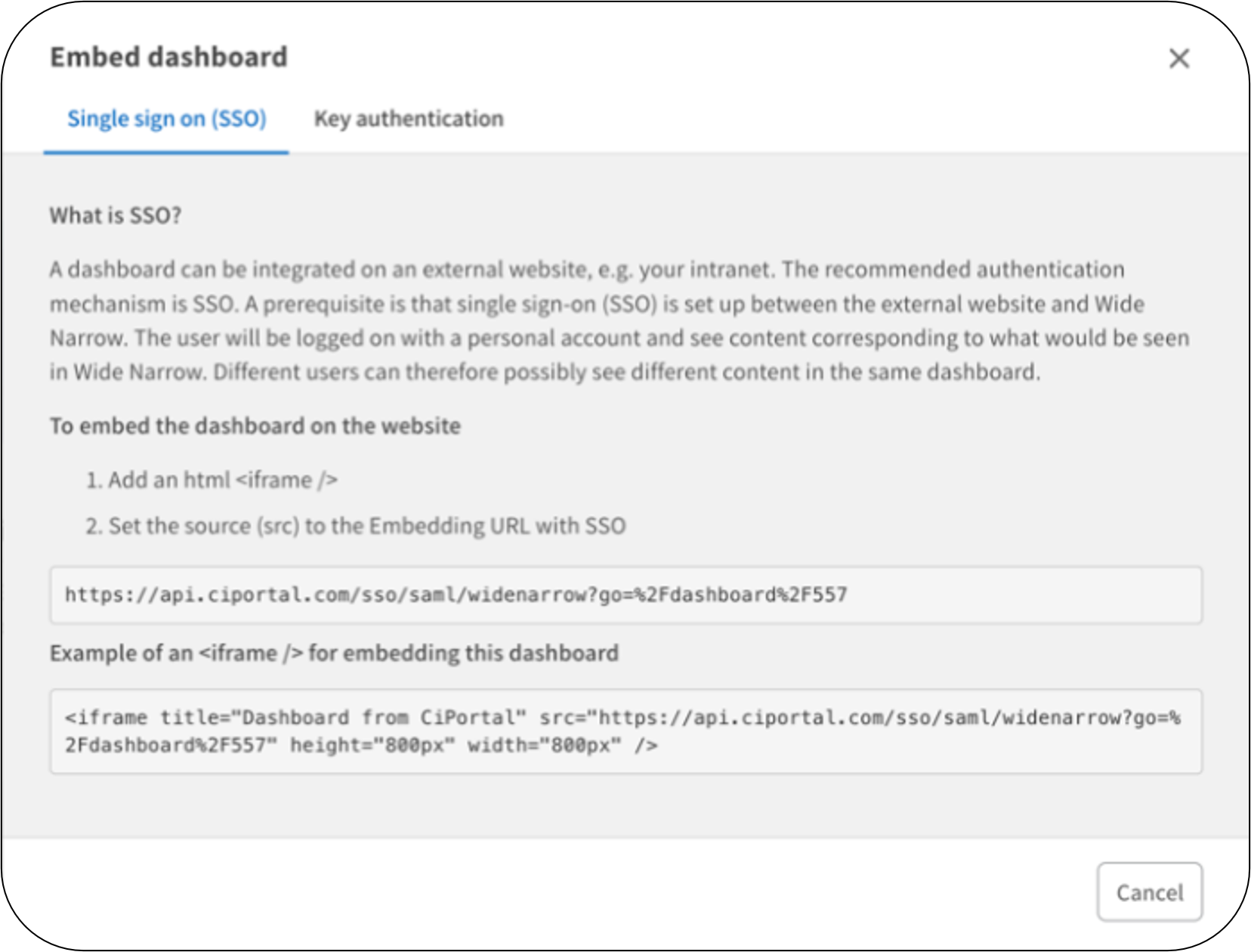
With SSO in place:
Copy the text in the text bar under “Example of an <iframe /> for embedding this dashboard” on the Embed dashboard pop-up.
Follow the instructions under the In SharePoint section below to set up the embedded Dashboard on SharePoint.
Key Authentication:
Follow the instructions on the Key Authentication page to set up a Machine user with a generated key and to retrieve the link to embed the dashboard on a SharePoint page:
- Click the Generate key tab on the “Embed widget” pop-up and follow the instructions to generate the key.
- Replace “REPLACE_WITH_KEY” with the generated key in the embedded widget URL in the top text field. Copy the link to use on SharePoint.
Follow the instructions under the In SharePoint section below to paste the link when setting up the embedded Dashboard on SharePoint.
In SharePoint:
1. Log into Microsoft 365 and navigate to a SharePoint site.
2. Click on + New and select Page.
3. Select the Blank page template and click the Create page button.
4. Mouse over the page’s text space to display the plus button and click on Add a new web part.
5. Type “Embed” in the search bar and then press the Embed button.
6. Paste the embed code from the “Example of an <iframe /> for embedding this dashboard” text bar in the Wide Narrow portal into the “Website address or embed code” text box on the Embed sidebar.
If you want to increase the size of the embedded dashboard, change the height and width values in the copied embed code to 100%.
7. If you encounter the message in red below that embedding is not allowed, please check with your SharePoint Site Administrator to ensure embedding is enabled.
Embedding content from this website isn't allowed, but your admin can change this setting. They will need to add 'api.ciportal.com' to the list of sites that are allowed.
Guidance on changing site settings
To add 'api.ciportal.com' to the list of sites that are allowed:
Click on Settings > Site information > View all site settings > HTML Field Security and add the Wide Narrow dashboard domain to the allowed domain list (api.ciportal.com for dashboards embedded using SSO and embed.ciportal.com for dashboards embedded with key authentication)
8. Click the Publish button. The embedded Dashboard is now displayed as a new selectable Dashboard in the SharePoint site menu and is visible to everyone who can access the site.
Comments
0 comments
Please sign in to leave a comment.