VisualPing monitors website changes, sending alerts when there has been a change.
To create a VisualPing feed, you need a VisualPing account on a paid plan.

Typically the monitoring Job in VisualPing is set up before connecting it to Wide Narrow.
When your Job in VisualPing is active, continue with these steps:
- Login to Wide Narrow and open your DIY inbox.
- Click the Settings icon (three dots) and select InfoLab.
- Click New Feed and select New VisualPing Feed.
- Enter a name to be used in Wide Narrow for the feed. A good practice is to use a word corresponding to the desired monitoring (e.g., Competitor X Product page).
- Select the target Inbox for the RSS feed. Only applicable if you have more than one DIY Inbox.
- Copy the Webhook URL presented.
- Press Save.

- In VisualPing, press the Settings button for your monitoring.
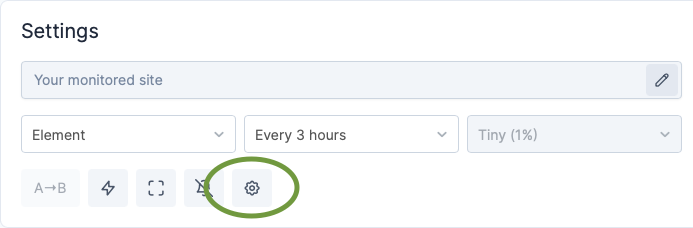
- Check and select the Webhook tab:
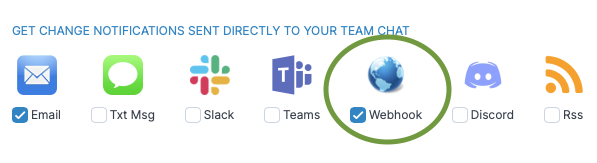
- Paste the Webhook URL copied from Wide Narrow into the corresponding field.
- Check the checkbox 'Notify when a change is triggered'.
- Press Save.
Optionally you may want to press 'Run now' for your Active Job to trigger a difference pull immediately. Note that a post in Wide Narrow will ONLY be created when VisualPing detects a difference.
A post will be created in Wide Narrow when a difference is detected. If multiple differences are detected on the same day, these will be marked as duplicates to the first post. A good practice is to use a broad interval to avoid duplicates.
User Access: InfoLab and DIY Inboxes are available for all Superusers with access to Inboxes.
Comments
0 comments
Please sign in to leave a comment.