Microsoft Power Automate is a cloud-based service that automates workflows between apps and services to sync files, get notifications and collect data. You can connect Power Automate to more than 220 services, and manage data from cloud or on-premises sources.
To create a Power Automate feed, you need to have a Power Automate account with a valid plan. Your organization must also ensure that the InfoDesk connection is in place. If not, please contact InfoDesk Support.
- Enter a name to be used in InfoDesk for the feed. A good practice is to use a name that corresponds to the desired external integration (e.g., Salesforce Chatter for X).
- You will automatically be given a Connection Name and API Key to be used in Power Automate. Copy the provided Connection Name and API Key for a later step. This information can also be obtained later by visiting the feed and selecting the "Configure Power Automate feed" tab.
- Log in to Power Automate. Select Create from the left-hand menu and then press Automated Flow.
- Choose an origin trigger event from available applications (e.g., Salesforce or Teams). A trigger event is an occurrence in a third-party application that will later generate a Post in InfoDesk. A typical trigger event is; 'Salesforce - when a record is created.
- Press '+ New step' and locate 'InfoDesk'. The InfoDesk connector will probably be located in the Custom section. Press the tile.
- If you already have a connection, skip this step, else create a new Connection to InfoDesk by pasting the provided information in corresponding fields from step 2. Press Create. This step will only be necessary to set up ONCE for each API Key.
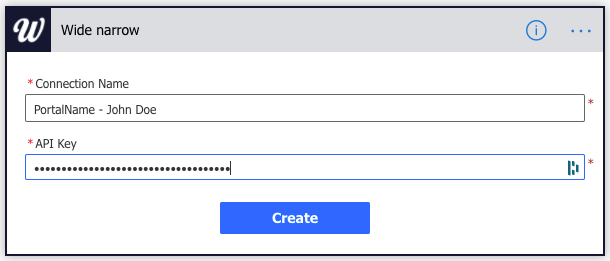
- Select action 'Create post in InfoDesk Inbox'.
- Start with expanding the Inbox connection.
Select your destination InfoDesk Inbox and connection. If the list is empty, your feed is not properly set up. Refer to step 6 and provide a valid API Key.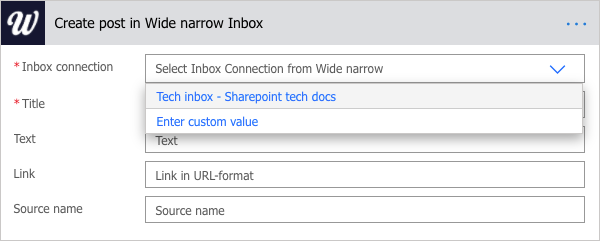
- Map origin data to desired fields. By pressing a field (like Title), you are presented with Dynamic content from the originating trigger event. Dynamic context could be, for example, file-name for a file trigger. Press the dynamic field to add the value. Static text can be entered as well.

- After mapping desired fields, press Save. Your flow is now active, and when the trigger event occurs, you will receive a new post in your InfoDesk Inbox.
Comments
0 comments
Please sign in to leave a comment.