Last updated on April 26, 2025
Articles in this document
About Factiva Select Connector – Intro
How to Configure a Factiva Feed
Preview and filter a Factiva feed
Manage Factiva Feeds
About Factiva Select Connector
Factiva Select is a customizable news feed solution from Dow Jones, designed to deliver filtered XML content from an extensive range of global news and business sources.
Introduction
A Factiva subscription is required for your organization to access this service.
Your organization can enable the Factiva connector independently, or InfoDesk can assist in activating it using the credentials provided by Factiva.
The Factiva select feeds can be created once the Factiva Select connector is enabled in the portal
How to Configure a Factiva Feed
Factiva Select offers access to over 9,641 global sources and 11,230 websites in up to 30 languages, delivering world-class news and business information with thousands of new articles daily.
To connect a Factiva select feed to your Inbox, follow these steps:
- Navigate to Inboxes and open your Inbox. Select InfoLab from the More menu on the far right in the top menu of the inbox.
- Click the New Feed button and select the Factiva feed in the drop-down menu.
- Alternatively, click the New Feed button on the connectors tile to go to the Preview and Add Filter page, where you can apply filters to select specific content from Factiva.
Preview and filter a Factiva Feed
Use the Filter menu to the left to add filters to your feed.
- The filter menu offers various search options that can be combined to optimize your search results and filter. These options include a free text search and Factiva specific filters and facets.
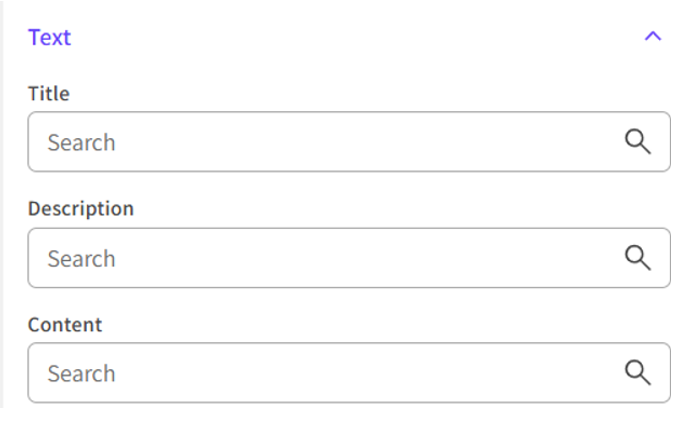
- To search for specific keywords or phrases, use the search bars under the Text section, which includes Title, and Description.
-
To narrow down the search, use the facets under the STN filters along with the AND, OR, and NOT operators to further refine your search. Note that the filters and facets are only enabled when content matches the filters.
Read more about the Filter Options under the “Filter Options” section below. More information about combining keywords and creating search strings is available in Help.
-
Preview the filter result in the Preview Post list and adjust your filter options until you are satisfied with the outcome.
The chart above the post list displays the number of retrieved posts within the specified Time period, providing an estimate of the amount of information your feed will generate over time. You can change the time period by clicking the Calendar button above the chart.
Red bars indicate that your feed will generate more information than is allowed in your inbox. Change your filters until the bars are all yellow.
3. When you are satisfied with your filter, click the Save button to save your new feed. Alternatively, you can click the Next button to proceed to the create page.
- On the create page, you can change the name and description of your updated feed and select another target inbox.
- Optionally: Check the Restricted checkbox to prevent others from updating the feed. When restricted a padlock icon will be shown on the Feed in InfoLab.
- Press Save to save/update the feed. Your feed is now connected to your inbox and available from the Feed page in InfoLab
Filter Options
This section contains information about the Filter options for the Factiva Select feeds.
The filter menu offers various search options that can be combined to optimize your search results.
These options include free text search, Advanced Query and Factiva specific filters. Most of the filters provide predefined facet options that you can select from to specify your filter. Note that filters and facets are only enabled when content matches the filters.
Use the AND, OR, and NOT operators to refine your search further.
- Use the OR operator to include one or the other facet within a filter category. This gives a wide search.
- Use the AND operator to require that both facets are included within a filter category. This gives a narrow search.
- Use the NOT operator to exclude specified facets within a filter category.
Your search result will be displayed above the bar chart to provide an overview of your chosen filters. With more than four facet buttons, click the Show more button to view all facets.
If the post list view is empty, no content matches your search within the set time period or filters. Change the Time period or adjust the filters and preview the result. The default period is “Past week”.
Advanced Query
The Advanced Query Filter empowers you to craft highly specific search queries and allows you to target your search by entering criteria directly for each supported indexed field. Use the advanced Query to refine your search results and pinpoint the exact information you require.
Using the Advanced Query Filters
Define a field search operation using fieldName:searchExpression syntax. The search expression can be a single word, a phrase, or a more complex expression (in parentheses), optionally with Boolean operators.
For example:
- title:(federal NOT local)
- description:("FDA" "EMEA")
The field specified in fieldName:searchExpression must be an indexed field. Click the info button in the Advanced Query filter to view the supported fields.
Text Filter
The Text filter allows for free text searches. You can use a single keyword, combine several keywords, or create a complete search string.
You can choose to search in the Title or Description depending on how wide or narrow your filter to be.
Title: Only include content matching your search query in the article title. This is the narrowest text search.
Description: Search in the article Description for a broader search.
Content: Search in the full Content for the broadest search.
Predefined Filters and facets
The Factiva filter menu includes a range of predefined filter and facet options. Use the filter search bar and then click on the facet buttons to set your filter.
Folder Names: Content is organized by folder names based on the data, allowing users to filter data accordingly.
Industries : Search industry or use the predefined industry facets to filter by industry. Click on “Show more” to view all the options. This filter is commonly used and a good start when creating a filter
Locations: Search by Location names or use the predefined facets to filter. Click on “Show more” to view all the options.
Organizations: Search Organization names or use the predefined Organization facets to filter by company. Click on “Show more” to view all the options. Use this filter to delimit the filter to specific organizations
Publication Names: Search Publication names or use the predefined Publication facets to filter by company. Click on “Show more” to view all the options. Use this filter to delimit the filter to specific Publications.
Topics: Search Topic names or use the predefined Topic facets to filter by company. Click on “Show more” to view all the options. Use this filter to delimit the filter to specific topics.
Languages: Search by language names or use the predefined facets to filter by Language. Click on “Show more” to view all the options.
Best Practices
Text Query
A good start when filtering content is to start with a text query.
You can use one single keyword, several keywords or create a complete search string. You can read more about how to combine keywords and create search strings in Help.
Depending on how wide or narrow the search you would like to do, you can search in only Title or the Description.
Filters and facets
Use predefined filters and facets to specify your search. Use the filters that best match your query. Use the AND, OR and NOT operators to refine your search.
The list of posts that appears when you are adding filters allows you to preview the filters before applying them. Go through the preview post list to make sure that the posts retrieved by the filter meets your expectations.
Optionally use additional filters and facets to refine your search.
Good to Know
Time Period
When choosing the Time Period for the preview post list, you have the option of selecting from the past 24 hours, past week, past month, Past three months, past six months. The default time period is the past week.
Max Number of Posts
If your filter retrieves more posts than allowed, the chart bars will turn red, and you will be prompted to adjust your filter.
Note that the maximum number of posts accepted in Inboxes is 100 posts per day.
Categories Displayed on Posts in the Preview Post list
The categories shown on the posts in the preview post list on the Preview and filter page in InfoLab are only used in InfoLab and will not follow the posts to the Inboxes.
Text Query Highlights
Words matching the text query keywords are highlighted in the title and article content in the preview post list to assist you in reviewing the articles and their relevance.
Manage Factiva Feeds
You can manage all your feeds from the InfoLab Feeds page.
To manage your feeds, follow these steps:
- Navigate to the InfoLab Feeds page from the main menu or start from your Inbox and select InfoLab from the More menu.
- Use the search bar at the top of the page to find your feed.
- Click the Menu button to the far right on the feed row to open the menu.
- Select Edit to open the Preview and add Filter page and edit the feed. In the "Preview and filter" section, you can find more instructions on how to edit a feed.
- Select Set Automatic Categorization to tag all posts from this feed automatically. Use the search bar or open the taxonomy to find and select categories. Press Save
- Select Deactivate to pause your feed. A pause button will appear on the feed, and the feed will stop retrieving posts to your inbox. Clicking Activate in the feed menu will reactivate the feed.
- To change the inbox where the feed is directed, click on Select inbox and select another inbox.
- Select Delete to delete the feed from InfoLab.
Comments
0 comments
Please sign in to leave a comment.